TrackPilot User Guide
Everything the software does, setting by setting, and what to do when something does not work.
Press F1 in TrackPilot at any time to open this page in your language.
- 1. What you need
- 2. Install and first launch
- 3. Connect the camera
- 4. Choose the video source
- 5. Track someone
- 6. The live control panel
- 7. Tracking area and exclusion zones
- 8. Tracking settings, one by one
- 9. Manual control and presets
- 10. Tracking profiles
- 11. Several cameras
- 12. Stream Deck and network control
- 13. Keyboard shortcuts
- 14. Troubleshooting
- 15. Getting help
1. What you need
- A Windows 10 or 11 PC. Any recent computer runs the tracking on its processor. An NVIDIA graphics card (RTX 20 series, GTX 16 series or newer) is optional and takes the load off the processor.
- A PTZ camera on your network. Panasonic cameras are driven through their own protocol. Almost every other brand (Sony, PTZOptics, Lumens, BirdDog, Aver and more) is driven through VISCA over IP.
- The camera picture reaching the PC, in one of three ways: an NDI stream, an RTSP stream, or an HDMI/SDI capture card.
TrackPilot only needs to see the picture and reach the camera over the network. It does not sit in your video chain and does not change your output.
2. Install and first launch
- Download the installer from trackpilot.live and run it.
- Windows SmartScreen may warn that the publisher is unknown. TrackPilot is a young independent app and its installer is not signed with a paid certificate yet. Click More info, then Run anyway.
- Start TrackPilot. The first window is empty: it is waiting for a camera and a video source, which you set in Settings (top right).
3. Connect the camera
Open Settings, page Camera.
| Setting | What to enter |
|---|---|
| Control protocol | Panasonic CGI for Panasonic cameras (AW-UE150, UE100, UE160, HE145 and the rest of the range). VISCA over IP for everything else. |
| IP Address | The address of the camera on your network, for example 192.168.1.50. The camera and the PC must be on the same network. |
| Camera HTTP port | Panasonic only. The port of the camera's own web interface, usually 80. If you reach the camera at an address like 192.168.1.50:5162, enter that port. |
| Username, Password | Panasonic only. The login of the camera's web interface, if it asks for one. |
| VISCA mode | VISCA only. Standard (52381) works with the vast majority of cameras. Legacy / raw (1259) is for older PTZOptics, Avonic or Vaddio units that refuse the standard format. Changing the mode proposes the matching port. |
| VISCA port | VISCA only. 52381 in standard mode, 1259 in raw mode, unless your camera says otherwise. |
| Invert pan, Invert tilt | Tick these if the camera turns the wrong way, typically when it is mounted upside down. They apply to the tracking and to manual control alike, because the direction belongs to the camera. |
Then click Test connection. It checks the address, the network, the port, whether the camera answers and whether it accepts the login, and names the exact cause when something blocks. It tests what is on screen, so you can fix a field and click again before pressing OK.
4. Choose the video source
Open Settings, page Video, and pick the Video source.
NDI
Click Scan the network for NDI cameras and pick your camera in the list. The NDI runtime is bundled with TrackPilot: you do not have to install anything else for NDI to work.
- Camera missing from the list? Nine times out of ten Windows Firewall is blocking NDI discovery. Run TrackPilot as administrator and scan again. Also check that NDI output is enabled on the camera and that both devices are on the same network.
- Camera in the list but the preview stays black? Most often an NDI|HX3 camera. Its stream is H.265, which Windows only decodes with the free HEVC Video Extensions from the Microsoft Store (the version from the device manufacturer is free). Install them, or switch the camera's NDI mode to HX2 (H.264). Test video source tells you when the extensions are missing.
RTSP stream
Paste the RTSP address of the camera, for example rtsp://192.168.1.50:554/stream1. The exact path depends on the camera, it is in its manual or its web interface. Since 1.5.0 the stream is read with low latency, so RTSP is a perfectly good source for tracking.
Capture card (HDMI/SDI)
Click the refresh icon (Refresh the list) and pick the WDM Capture entry of your card.
- A capture card can only be used by one program at a time. Close vMix, OBS, Media Express or anything else holding it.
- In the card manufacturer's setup tool, check that the input and the video standard match the camera, for example 1080p50. Without a locked signal the card refuses to open.
Test video source
Whichever source you use, click Test video source. It checks that a picture can actually reach TrackPilot and tells you what is missing: a source on the network, a card held by another program, a card that opens but receives no signal, or the HEVC extensions.
Optimizations
| Setting | Effect |
|---|---|
| Preview quality | Sharpness of the preview in the window. Lower it on a small PC; it changes nothing to the tracking, which always works on the full picture. |
| Low CPU mode (lighter detection + NDI) | Lighter detection and a lighter NDI stream. Use it when the processor is struggling. The tracking stays accurate, it reacts a little less finely. |
| GPU acceleration (NVIDIA CUDA) | Runs the AI detection on the graphics card instead of the processor. Needs an RTX 20 series or GTX 16 series card or newer; older cards are detected and kept on the processor automatically. |
5. Track someone
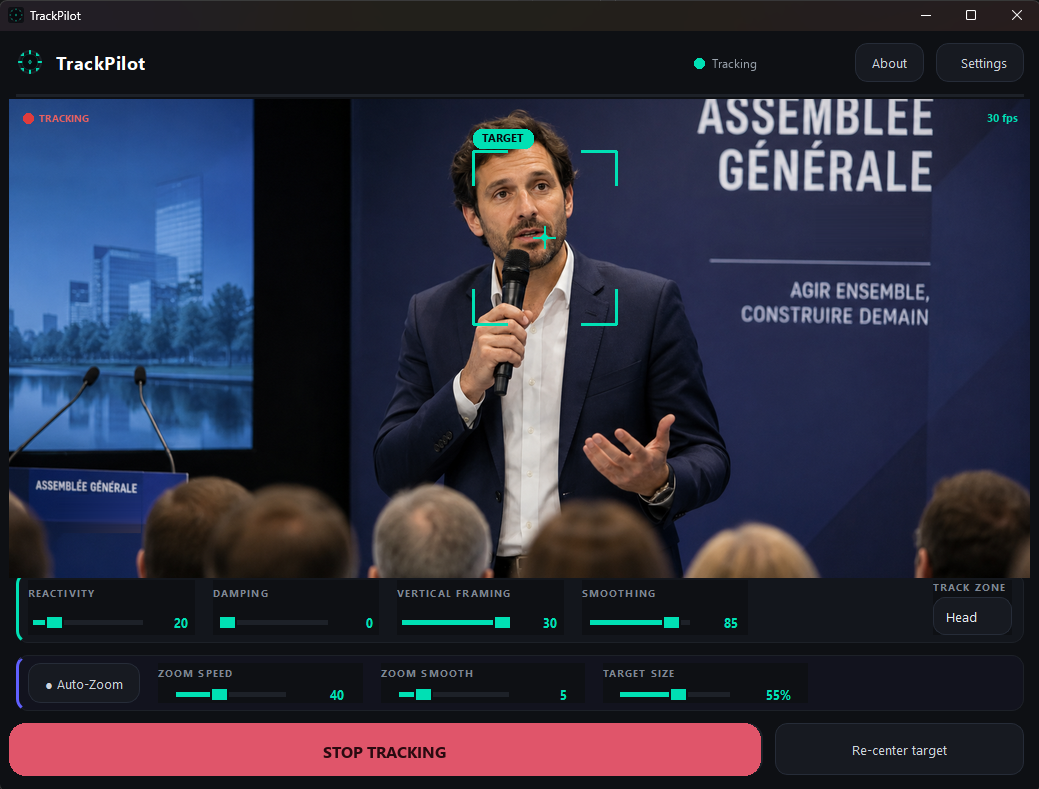
- Once the preview shows the picture, every person detected gets a numbered box.
- Click the person to track. Their box changes colour and gets a reticle. You can also press 1 to 9 to pick the matching number.
- Click START TRACKING. The camera pans, tilts and zooms to keep that person framed.
- Click another person at any time to switch. Re-center target locks onto whoever is closest to the centre of the picture.
- STOP TRACKING stops the camera where it is.
The counter in the corner of the preview shows the frame rate of the source and, while tracking, the rate of the AI detection.
6. The live control panel
The sliders under the preview act immediately, while the camera is tracking. Every one of them has a tooltip in the application.
| Control | What it does |
|---|---|
| Style | The character of the tracking. 0 is raw and sharp: the camera reacts at once and follows every move, for fast action. 100 is soft and smooth: slow, clean moves for a speaker at a lectern. One slider sets reactivity, tilt reactivity, smoothing and the response curve together. |
| Attack | How hard the camera starts and stops. Low is gentle starts and long ramps, the camera settles without overshooting. High is instant starts at full speed and sharper stops. One slider sets acceleration, damping, minimum and maximum speed together. |
| Framing V | Where the subject sits in the frame. Higher means less headroom (subject higher in the picture), lower means more headroom. |
| Framing H | Shifts the subject off centre. Towards Left puts the subject on the left, leaving room on the right for a whiteboard or a screen. |
| Track zone | Body: the camera centres on the whole body. Head: it centres on the head, for tighter shots. Group: it frames everyone detected at once, for panels and round tables. |
| Shot size | Standard framings: Full shot, head to toe, Medium shot, waist up, Medium close-up, chest up, Close-up, shoulders up. Each one sets both the area the camera aims at and the target size. The box switches to Custom as soon as you move a slider yourself. |
| Keep subject within | Quick sizes for the tracking area, from Centre fifth, very tight to Wide centre, relaxed. See the next section for what the area really does. |
| Auto-Zoom | Turns the automatic zoom on. Zoom speed is how quickly it corrects the shot size, Zoom smooth eases it near the target size so it does not pump in and out, and Target size is how much of the frame height the subject should fill (higher is tighter). |
7. Tracking area and exclusion zones
Tracking area
Click Tracking area in the top bar and drag a frame on the preview. The camera then only moves when the subject leaves that frame, and brings them back to the centre. Inside it the subject is free to move without the camera reacting.
Exclusion zone
Click Exclusion zone and drag up to three red zones on the preview. People inside them are ignored: the audience, a screen showing faces, a second stage.
By default a zone is fixed to the picture, so it stops covering the right spot as soon as the camera pans. Turn on Exclusion zones follow the room (Settings, Tracking) and the zone stays on the same place in the room instead: point it at a projection screen once and it keeps covering that screen while the camera moves. The badge ZONES ANCHORED in the preview confirms it.
Guides
The Guides button draws a centre cross, the rule of thirds or the safe area over the preview, to help you set the framing. They are outlined so they stay readable over a bright scene.
8. Tracking settings, one by one
Settings, page Tracking. These are the settings you set once; the panel above is what you adjust live. Every page has a Factory settings button that resets only that page.
| Setting | What it does |
|---|---|
| Dead zone X, Dead zone Y | How far the subject may drift from the centre before the camera reacts, when no tracking area is drawn. Once the subject leaves it, the camera brings them back to the centre and only releases when they are near it. |
| Advanced settings | At the bottom of this page, folded by default. The individual values that Style and Attack set together: Reactivity (Kp), Tilt reactivity (Kp), Damping (Kd), Smoothing, Response curve, Acceleration, Min speed and Max speed. For experienced users who want to go further than the two sliders. Changing them moves Style and Attack to the closest position; moving one of those two sliders afterwards rewrites the values. |
| Target priority | How long a new person must stay in view before they can take over the tracking. Raise it when people walk in front of the camera. 0 accepts the first person found. |
| Lost target timeout | How long the camera waits, once the subject has disappeared, before considering them lost. |
| Return preset when lost | When the subject is lost for good, the camera goes back to this camera preset, for example a wide shot. None means the camera simply stops where it is. |
| Exclusion zones follow the room | See section 7. |
| Auto-zoom | Whether the automatic zoom is on when the application starts. |
| Start/stop shortcut | A key that starts and stops the tracking from anywhere in the window, for example Space or Ctrl+T. |
Starting points for common situations
- Camera far away on a long lens (back of a hall): Attack low, so the moves start gently and never run away, and Style above the middle.
- Lively performer who moves their arms a lot: raise Style. TrackPilot already tells a gesture from a step, so the camera follows a real move without delay and mostly ignores the arms.
- People walking in front of the camera: raise Target priority to a second or more.
- Presenter at a whiteboard or a screen: use Framing H to leave room on the side of the board.
- Presenter who should stay in one part of the shot: draw a tracking area there, or pick Centre third, tight under Keep subject within.
9. Manual control and presets
The Manual control button opens a panel with a virtual pan/tilt joystick, zoom, focus (auto or manual, plus Push AF) and iris (auto or manual). It works on every supported camera.
Using a manual control while tracking pauses the tracking (an amber TRACKING PAUSED badge appears) and it resumes when you let go. On the keyboard, the arrows drive pan and tilt and PgUp / PgDn drive the zoom, as long as the panel is open.
PRESETS are six named slots stored in the camera itself (position, zoom, focus and iris). Click Record, then a slot, to save the current position. Click a slot to recall it, right-click to delete it. The Return preset when lost setting and the Stream Deck preset buttons use these same slots.
10. Tracking profiles
A profile is a saved set of tracking settings: style, attack, framing, dead zones, tracking area, auto zoom, lost timeout and return preset. Save one per speaker, or one per kind of event, and switch between them instantly from the Profile menu in the top bar (or from a Stream Deck button).
11. Several cameras
One window per camera
TrackPilot drives one camera per window. To track a second camera on the same PC, open Settings, page Network, section Camera windows (one per camera): type a name such as CAM2 and click Open camera window. A second TrackPilot opens with its own settings, so its own camera and video source. Your tracking settings and your language are copied to start with, and its network control port is picked free. The name shows in the title bar, so you always know which window you are in.
Each window runs its own AI detection, so the load adds up with the number of cameras. The same section lists the windows already created, so you can reopen one with a click.
If you prefer a shortcut, the command behind it is TrackPilot.exe --profile CAM2: copy the shortcut and add that at the end of its Target field.
Making them work together
Turn on Allow control from the network in each window, then tick Work together with my other cameras and list the others under Partner cameras, for example 10.0.0.5:8088, 10.0.0.6:8089. Use the same token everywhere.
From then on, starting or stopping the tracking, relocking, changing the profile or the tracking area on any camera is passed on to all of them. What is shared are the decisions, not the tracking itself: each camera still finds its own subject on its own picture. Choose the subject on each camera before starting, or use the numbered targets.
The Group button in the top bar detaches a camera from the group mid show: it stops sending its actions to the others and stops obeying theirs, so you can re-aim it at a second presenter while the rest keep tracking the first. Click it again to bring it back.
Re-lock every camera together when the subject is lost is off by default. Leave it off unless all your cameras cover the same person: each camera re-locks onto whoever is closest to the centre of its own picture, so on a stage with several people they could all swing to the wrong subject at once.
12. Stream Deck and network control
Settings, page Network: tick Allow control from the network. Keep Port 8088 unless it is taken, and set a Token (optional) if you want a simple password. The panel shows the exact address to use. Nothing is exposed until you enable it, and the video is never exposed.
Bitfocus Companion
The TrackPilot module ships with the installer, in the Companion folder of your installation (Start menu, Stream Deck module (Companion)). In Companion, open Modules, Import module, and pick the .tgz file as it is. Then add a TrackPilot connection with the IP and port. The module comes with ready made buttons, feedbacks that light up with the state, and Stream Deck Plus dials for the tracking settings.
Without the module, a Generic HTTP button that sends a GET request to one of the addresses below does the same job.
| Address | Action |
|---|---|
| /api/track/start, /stop, /toggle | Start, stop or toggle the tracking |
| /api/relock | Re-center on the most central person |
| /api/autozoom/on, /off, /toggle | Auto zoom |
| /api/preset/recall/N, /api/preset/save/N | Recall or save camera preset N |
| /api/zone/body, /head, /group | Track zone |
| /api/shot/full, /medium, /mcu, /closeup | Shot size |
| /api/area/off, /fifth, /third, /half, /wide | Tracking area |
| /api/group/on, /off, /toggle | Attach or detach this camera from the group |
| /api/profile/NAME | Switch to a tracking profile |
| /api/param/NAME/VALUE, /api/param/NAME/step/DELTA | Set a tracking setting, or nudge it: style, punch, reactivity, reactivity_tilt, damping, smoothing, framing_v, framing_h, zoom_size, zoom_speed, min_speed, max_speed, acceleration, target_priority |
| /api/status | Current state as JSON, for feedbacks |
With a token, append ?token=YOURTOKEN to the address. Windows may ask to allow TrackPilot on the network the first time: click Allow access, or Companion on another machine will not reach it.
13. Keyboard shortcuts
| Key | Action |
|---|---|
| 1 to 9 | Lock the person with that number |
| Arrows | Pan and tilt, when the manual panel is open |
| PgUp / PgDn | Zoom in and out, when the manual panel is open |
| Your Start/stop shortcut | Start or stop the tracking (set it in Settings, Tracking) |
| F11 | Scene mode: the video alone, full window, for a control room screen |
| F1 | Open this guide |
14. Troubleshooting
| Symptom | What to check |
|---|---|
| Windows says the publisher is unknown | Expected for now: the installer is not signed with a paid certificate yet. More info, then Run anyway. |
| Camera not in the NDI list | Windows Firewall blocking discovery: run TrackPilot as administrator and scan again. NDI output enabled on the camera, same network for both. |
| NDI source found but black preview | NDI|HX3 camera in H.265: install the HEVC Video Extensions from the Microsoft Store, or switch the camera to HX2. Test video source says so. |
| Capture card shows nothing | Another program holds the card (close it), or the input and video standard do not match the camera in the card's setup tool. |
| Camera does not move | Test connection in the settings names the cause: wrong network, closed port, wrong protocol, login refused. |
| Camera moves the wrong way | Invert pan or Invert tilt in Settings, Camera. |
| Camera jerky, overshoots | Lower Attack. If it still looks nervous, raise Style. |
| Camera slow, subject near the edge before it moves | Raise Attack. Check the tracking area is not the whole picture: the area is a zone the subject is kept inside, the bigger it is, the less the camera moves. |
| Camera reacts to the arms | Raise Style. Make sure you are on 1.5.0 or later. |
| Camera bounces back and forth on RTSP | Update to 1.5.0 or later, where the stream is read with low latency. |
| Tracking jumps to a passer-by | Raise Target priority. |
| Camera stays on the audience | Draw an exclusion zone over the audience. Turn on Exclusion zones follow the room if the camera pans a lot. |
| Companion says missing manifest | The module file shipped with 1.4.0 and 1.4.1 was packaged wrong. Use the one from 1.4.2 or later. |
15. Getting help
In Settings, click Copy diagnostic at the bottom of the page list. It copies a summary to paste when you ask for help: version, computer, video source, camera settings and the last errors. It never contains your password or your token.
Then post it on the TrackPilot Discord with what the camera does and what you expected. The developer and other users answer there.
Your settings live in %APPDATA%\TrackPilot\config.json (one file per camera window), next to a small error log. They are written safely and a spare copy is kept, so a crash or an update never loses them.